A free program for your Windows computer
Computer running slow? MemGuard shows you why
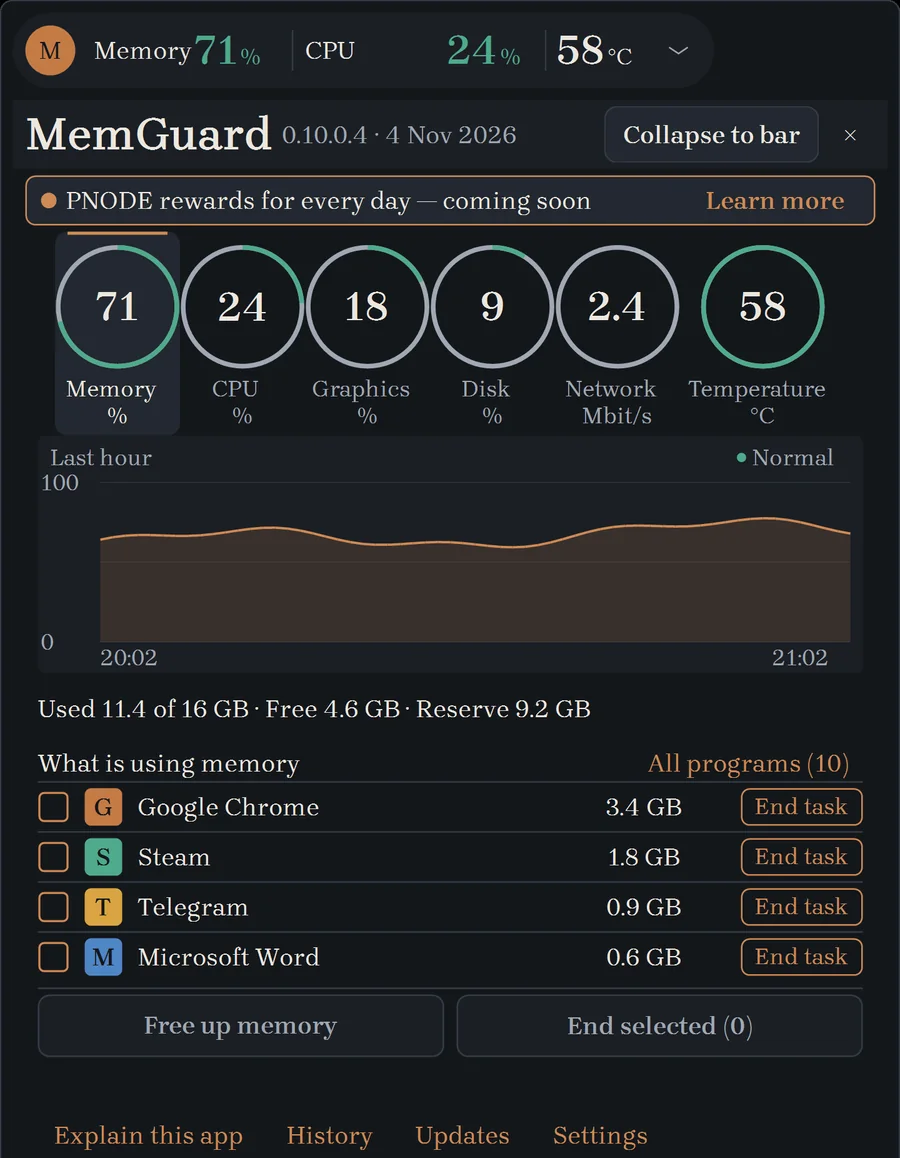
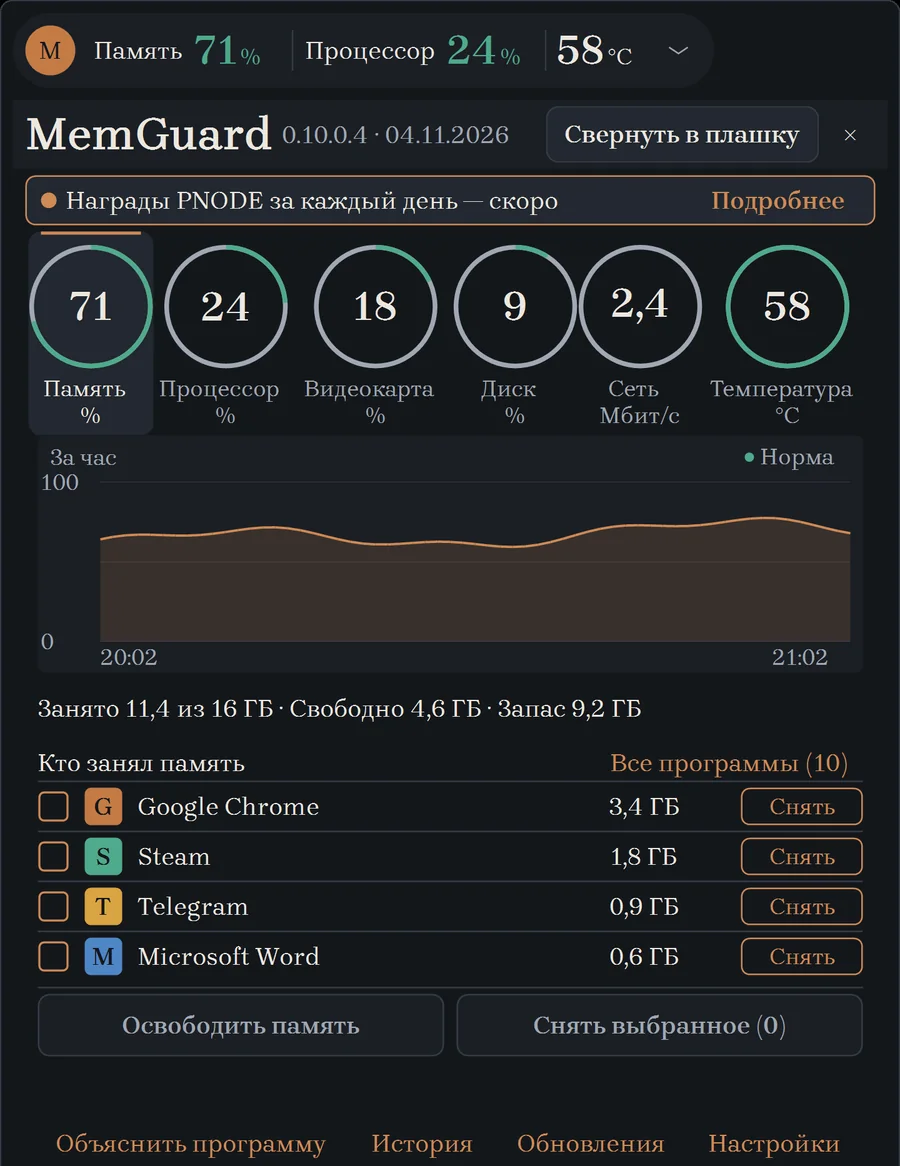
Open the program and you see right away what is using your memory, what is heating your computer and what you can close to give it some room.
Windows 10 and 11 · Free · No sign-up · Version , MB
Sound familiar?
Everything froze and you can't tell why
Task Manager shows hundreds of lines with cryptic names. MemGuard groups them by program, so you see right away who is using how much.
The fan is loud and the case is hot
Temperature and load are always in view. You can see which program is working hardest right now.
Memory is running out, though you opened nothing
Your browser, messengers and updates quietly use up memory. MemGuard shows them and helps you free it with one button.
Everything on one screen
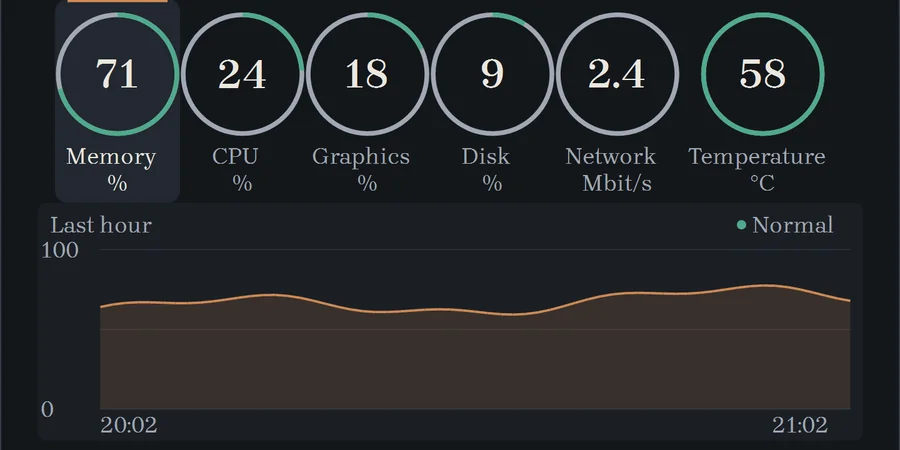
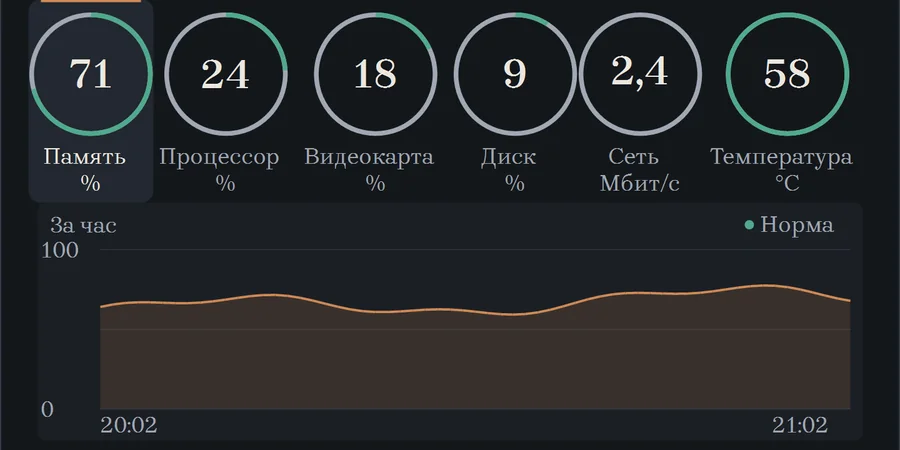
A small bar stays in view and doesn't get in the way. Click it and six rings open up.
Memory
How much is in use and which programs use the most.
Processor
Who is working hardest right now.
Graphics card
How busy it is, even if you have two.
Disk
How much space is free and how fast it reads and writes.
Network
How much comes in and goes out, and who is connected right now.
Temperature
Whether your computer is overheating and what the peak was this hour.
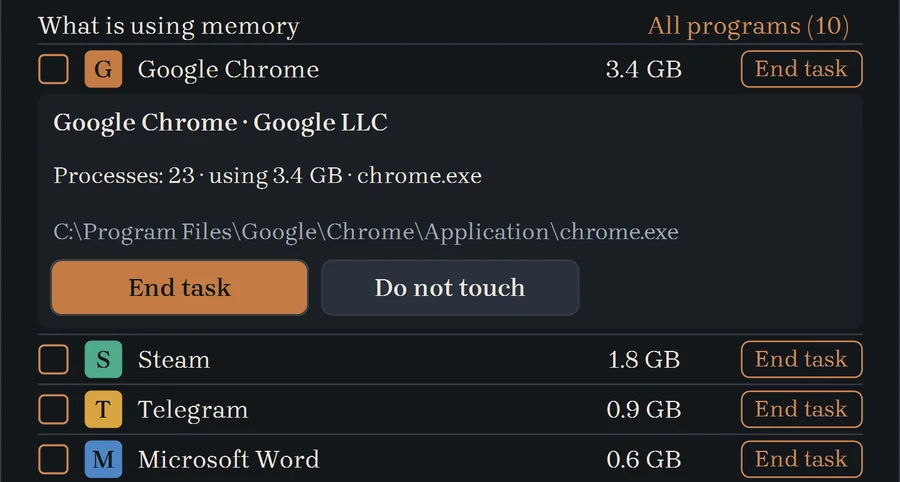
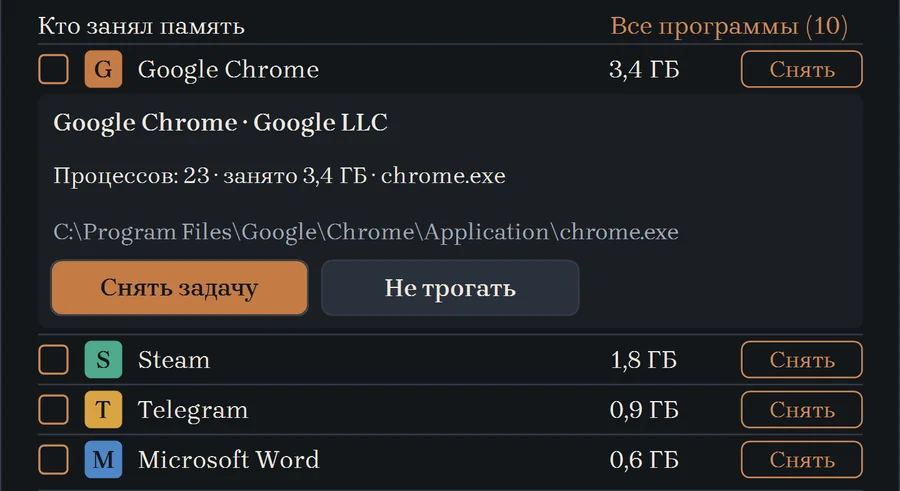
Click a program and find out what it is
What the program is, who made it and which folder it lives in. In the way? End the task. Need it? Mark it “Do not touch”.
MemGuard always asks before ending a task. It first asks the program to close on its own and only then closes it by force.
How to start
Download and run it
Click the button and open the downloaded file. The program offers to install itself: one click, no administrator rights needed. You can delete the downloaded file afterwards.
If Windows asks
You may see a window saying “Windows protected your PC”. Click “More info”, then “Run anyway”. That is how Windows greets programs without a paid signature, and we don't have one yet.
Look and decide
Click a ring to see a graph and a list of programs. Click a program to find out what it is. The rest is up to you.
Straight answers
Is it safe? Why does Windows warn me?
Windows warns about any program without a paid signature, and we don't have one yet. MemGuard runs without administrator rights and does not ask you to register. The program only checks whether a new version is available and does nothing else.
Will it close anything on its own?
No. Programs are ended only when you click and after the question “End this task?”. Unsaved work in an ended program may be lost, so save it first. What Windows cannot run without cannot be ended.
How much does it cost?
Nothing. The program is free and no sign-up is needed.
Why can't I see every process?
Windows doesn't fully show programs started as administrator or by the system. MemGuard doesn't raise its own rights and says plainly at the bottom of the list how many such processes there are.
What language is the program in?
For now, Russian and English.
What are PNODE rewards?
Soon you will be able to get a reward every day for using MemGuard: from 0.5 PNODE on the first day up to 50 PNODE a day after 225 days. Rewards are not being credited yet.
How do I update or remove it?
To update, download the new file and open it: the program updates itself and keeps your settings. To remove it, find MemGuard in the Windows list of installed programs and uninstall it like any other program.
What is slowing your computer down right now?
You'll know in a minute. The file is small and no sign-up is needed.